Time
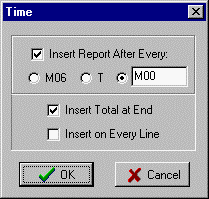
Calculates the running time of the NC code in the editor. Starting at the cursor position in the file, it will calculate the time and add to the total.
If the 'Insert Total at End' is checked, it will add comment lines at the bottom of the program with the total run time.
If the 'Insert Report After Every:' is checked it will insert a comment with the run time and segment time up to that point when it finds 'T' address, 'M6' code, or the entered string of characters, depending on which is checked.
When you know there will be extra time taken at a certain point in the program, like checking the part or tools, you can manually put in that extra time by adding a 'TTM' comment code line. That time will be added in when it is found. That way, the total time at the end of the program will reflect the actual running time.
Setting up Time Calculation:
· In Configuration – Time, take out any items and numbers.
· Make sure Lathe X-Axis Diameter or Radius is set correctly.
· In Configuration – Machine, set Home X,Y,Z to something close so the first move will be more accurate.
· In lathe will use G96 for constant surface feet spindle right and G97 for constant spindle speed for calculation.
· In the Time dialog, check all three reporting items so you can see the time for every move.
· After you get the time for distance traveled for the theoretical numbers accurate, if there is still not enough time you can change the Configuration – Time, Deceleration factor to a small number, like 0.001. This will add something for acceleration and deceleration for each move (according to speed).
· You can add the average time it takes for a tool change in Configuration – Time, "Add Time when find String" by putting in T with the time in minutes, like .02.
· It uses the "Rapid Feedrate" setting to calculate rapid moves.
· For a pause like where you oil the tap or clean the chips, you can put in a comment code with the extra time, like (TTM 0.5).
See Configuration Time for how to adjust the time of certain functions.
This only operates on the entire file. If you want to find the time of a small section, you can run that section with the Plot Status dialog box open and look at the time displayed there.
See Also: Remove Time
_________________________________________________________________
Copyright © 2020 i-Logic Software